






Abstract
In online and blended learning environments, students may experience learning barriers that are more pronounced than in the traditional classroom. When designing online instruction, teachers can use digital tools along with instructional strategies to reduce those barriers. Digital tools have various instructional and assistive features, which can provide supports for students with disabilities as well as other learners. This article addresses how teachers can make meaningful use of various digital tools in alignment with the three principles of Universal Design for Learning (UDL) to reduce barriers and support students to meet learning and affective goals. The article describes how various commonly available digital tools coupled with instructional strategies provide supports for representation, action and expression, and engagement for students in online learning environments.
Keywords
When schools closed at the start of the COVID-19 pandemic in March 2020, educators were inundated with information about digital tools for distance and online learning. Teachers rapidly adopted learning management systems, multimedia software, mobile apps, browser extensions, cloud-based collaborative environments, and web conferencing software to provide continuity of learning for students. At the same time, educational organizations, teacher educators, and educational software developers offered professional learning opportunities and informational webinars to help teachers navigate the shift to online teaching and learning. Many resources placed a greater focus on the digital tools, rather than on instructional strategies. This article describes how various digital tools can be used for teaching and learning in meaningful and intentional ways to support students with disabilities in the online environment.
Digital tools that can be used for teaching and learning include hardware (e.g., laptops, mobile devices), software (e.g., applications, apps, extensions, digital curricula), and technology-based online environments (e.g., websites, learning management systems). These tools provide powerful means to reach, teach, and engage learners. Digital tools also integrate various “assistive” features that can provide specific learning supports for students with and without disabilities. Assistive technology, in a traditional sense, refers to tools that support specific needs of students with disabilities, for example, text-to-speech tools, screen readers, and augmentative and alternative communication devices. Today, many of these assistive features are built in to the hardware and software we regularly use (Ok & Rao, 2019) and are widely available to students. With an awareness of the instructional and assistive potential of digital tools, teachers can use these tools purposefully to enhance inclusive practices in all formats, online, blended, and in person. This article highlights how teachers can purposefully use digital tools to facilitate learning for students with disabilities in online and blended learning environments in alignment with Universal Design for Learning (UDL) guidelines. Additional information, links, and videos supporting the information presented in this article can be accessed on the School Virtually website (schoolvirtually.org).
Universal Design for Learning for the Online Environment
The Universal Design for Learning (UDL) framework provides a helpful structure to consider when and how to use the variety of digital tools that teachers now have at their fingertips to design lessons and instructional materials. UDL is based on three principles of providing multiple means of 1. Representation, 2. Action and Expression, and 3. Engagement. The UDL framework includes nine guidelines and 31 checkpoints that define how these principles can be applied when designing instruction (CAST, 2018).
The UDL guidelines provide a way to address learner variability and reduce barriers in the learning environment for all learners with and without disabilities. Learner variability is the norm in the classroom, and in any given group, students will have varied support needs, strengths/abilities, backgrounds/experiences, and preferences/interests. By considering learner variability from the outset, teachers can design lessons that integrate supports and scaffolds that help a range of learners (Meyer et al., 2014). To help teachers achieve this goal, UDL provides a set of guidelines, with “checkpoints” that further define each guideline and how to reduce barriers and provide proactive supports to learners. A fundamental premise of UDL is that barriers in the learning environment can be reduced through intentional and proactive design. By considering how and when barriers to learning may arise in a lesson, teachers can integrate the strategies and tools that facilitate learning in the planning phase. Descriptions and classroom examples of how to apply UDL to lesson planning can be found in books such as Design and Deliver: Planning and Teaching Using UDL (Lord-Nelson, 2021) and UDL for Language Learners (Torres & Rao, 2019).
UDL-based design is relevant for teaching in any format, including face-to-face, blended/hybrid, and fully online environments. Whether in the traditional classroom or online, students with disabilities should receive services and supports mandated by their individualized educational plans. In the online environment, teachers can build in additional supports by integrating specific instructional strategies along with digital tools (Greer et al., 2014). Digital tools provide a variety of features that can support teaching and learning. For example, many digital tools offer multimodal possibilities, giving students varied ways to learn, process, and demonstrate knowledge. The tools we commonly use may also integrate features of assistive technology (AT) devices, facilitating navigation (e.g., customizing display of information, providing built-in accessibility tools), supporting literacy (e.g., text-to-speech, speech recognition), supporting multiple ways to represent information and express oneself (e.g., visual, auditory, multimedia formats). With an awareness of how to use the features of digital tools in both instructional and assistive ways, teachers can integrate these tools with instructional strategies that align with the UDL principles of providing options for representation, action and expression, and engagement for all learners. This article presents a range of tools combined with instructional strategies that address the nine UDL guidelines (and the 31 checkpoints that further define the nine UDL guidelines.) The UDL guidelines and checkpoints, along with a detailed definition of each one, can be accessed on udlguidelines.cast.org.
Designing to Reduce Barriers Online
Learning challenges typically arise for students with disabilities in these areas: academic areas (e.g., literacy skills), executive function (e.g., planning and organization), and learning behaviors (e.g., motivation and self-regulation). In the online environment, additional challenges arise in these three areas due to the lack of real-time guidance from teachers, lack of just-in-time support and feedback, and the need for students to manage instructional activities more independently. Table 1 provides an overview of common barriers and additional challenges that may occur when students are learning online, working more independently without the structure, support, and interactions in the traditional classroom. When designing online learning experiences, teachers can build in options that provide multiple means of representation, action and expression, and engagement, by intentionally using digital tools and instructional strategies to reduce these barriers.
Common Barriers and Challenges.
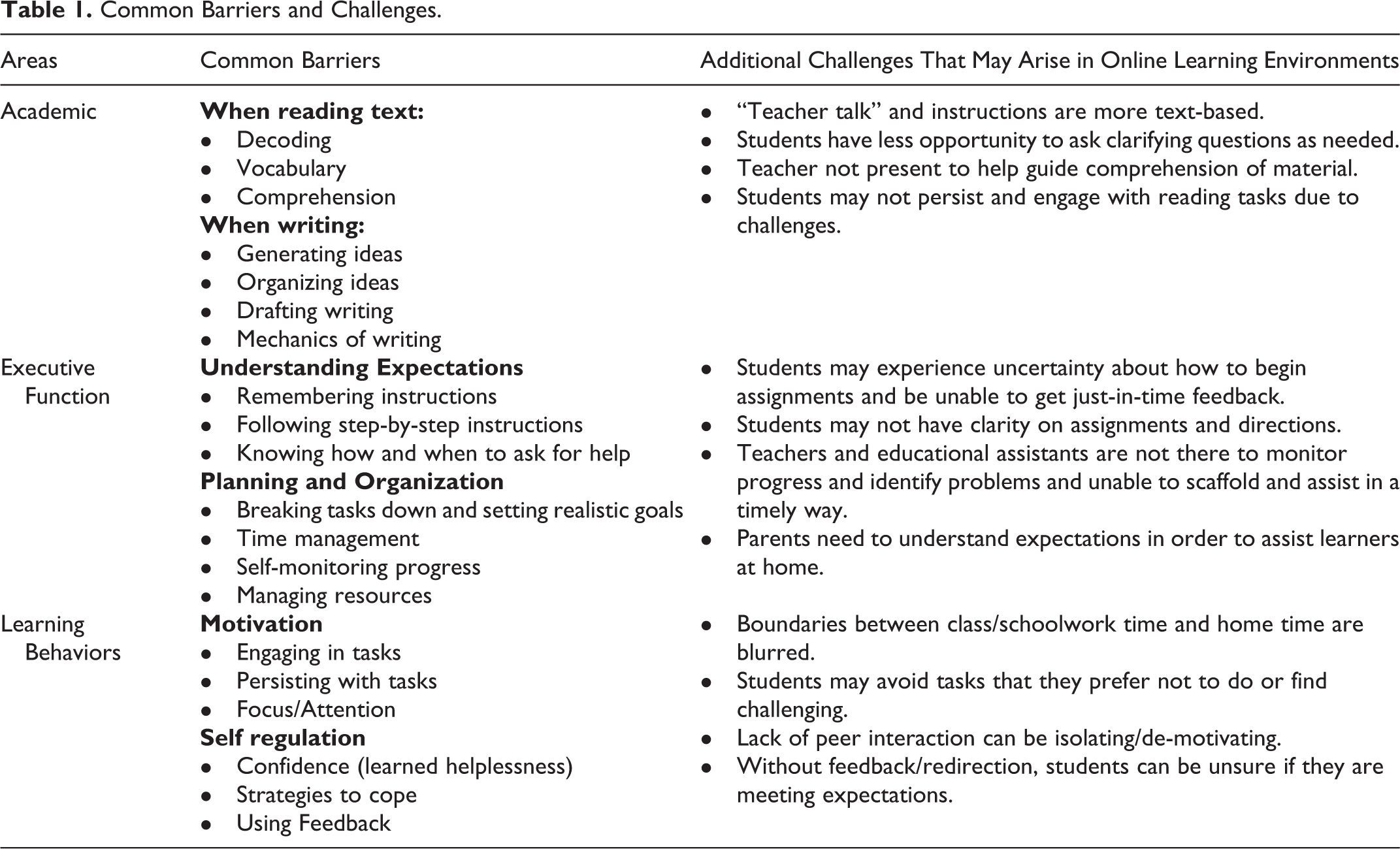
When designing lessons to support students with disabilities in online and blended learning environments, teachers can begin by considering these two questions: What are the barriers to learning that can arise in this lesson? How can I use digital tools in combination with instructional strategies to reduce barriers and enhance support for students?
The following sections describe how instructional strategies, along with intentional use of digital tools, can be used to reduce common barriers and support learners in online learning environments. The strategies are presented in the context of the three principles of UDL: Representation, Action and Expression, and Engagement and ways to enhance support in alignment with their corresponding UDL guidelines. Examples of each strategy are presented in a video series on the School Virtually website (at https://schoolvirtually.org/udl-based-design-and-digital-tools-for-online-learning).
Supporting Representation Online
One of UDL’s principles is to provide multiple means of representation, ensuring that students have ways to access, process, and comprehend content and expectations. Content is often represented in textual format (e.g., textbooks, worksheets, webpages). As a result, challenges related to reading skills (e.g., decoding, vocabulary, comprehension) pose common barriers related to the representation of information. Online, these barriers are exacerbated because even more information is presented in text format, for example, directions posted in a learning management system. Students are expected to read more text independently and comprehend and follow directions, without the benefit of interactions and comprehension checks that teachers, educational assistants, and peers provide in a traditional classroom. Table 2 provides an overview of instructional strategies and digital tools to support multiple means of representation online.
Instructional Strategies and Digital Tools to Support Representation Online.
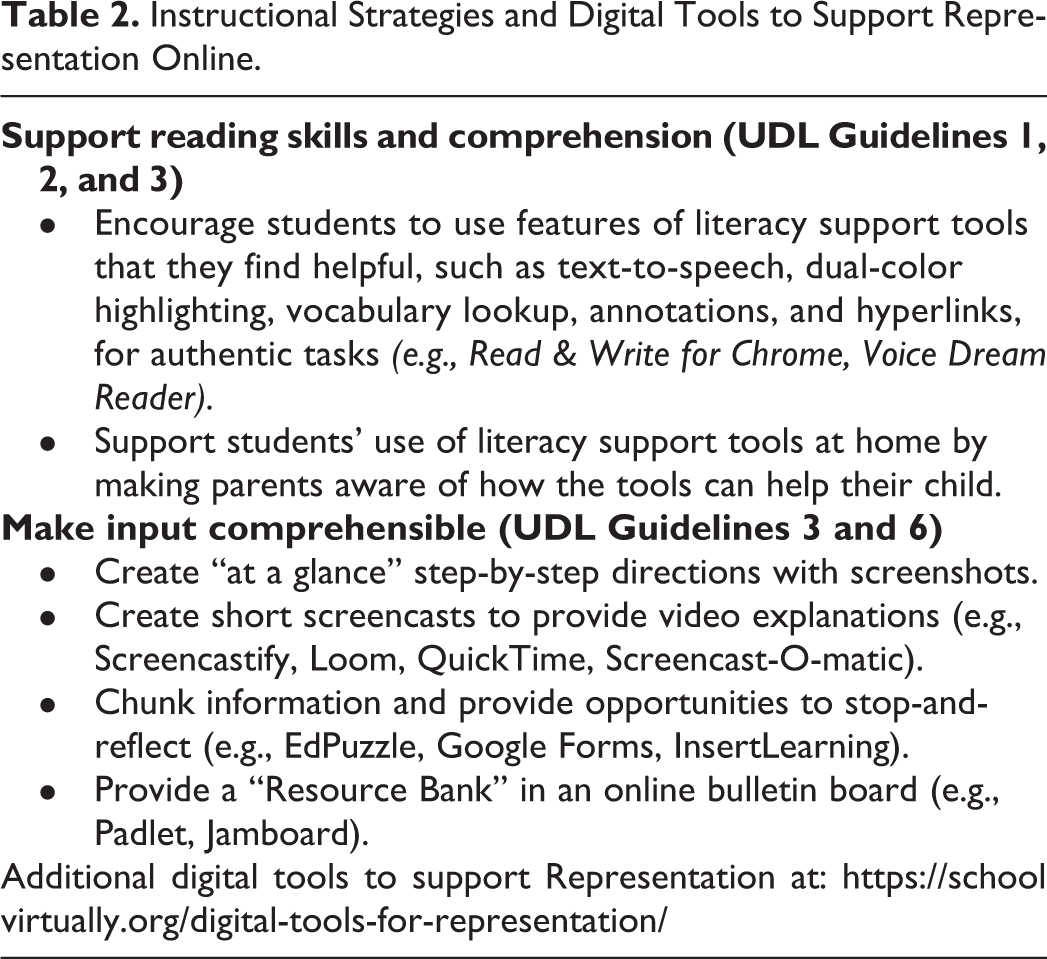
Support Reading Skills and Comprehension (UDL Guidelines 1, 2, and 3)
In the online environment, it is essential to ensure that learners use tools that can support reading skills, such as decoding, vocabulary, and comprehension. When reading digital text on a computer or mobile device, there are many tools that provide assistive supports. For example, text-to-speech (TTS) tools built-in on devices and available via apps and extensions are a powerful support for decoding and comprehension, allowing learners to hear text aloud. Several articles (Dawson et al., 2019; Ok & Rao, 2019) and websites (e.g., Understood.org, 2020) provide information on computer-based software, browser extensions, and mobile apps that provide literacy support with digital text. Browser extensions such as Read and Write for Chrome integrate various assistive technology features for digital text, such as TTS, dual-color highlighting to emphasize the word being read, vocabulary lookup, and translation. Students can also use digital text features in online textbooks that include digital enhancements. When learning in an online environment, students must navigate information in text format independently without the benefit of a teacher in the classroom to provide clarification. It is essential for students to know how to use features of literacy support tools that can be helpful for their specific needs. Literacy support tools provide various options for perception (UDL Guideline 1), clarifying vocabulary and mathematical symbols (UDL guideline 2), and supporting comprehension (UDL Guideline 3). Give students opportunities to use the features of literacy support tools (e.g., TTS, vocabulary lookup, annotations) as a part of authentic activities and to reflect on the features that they find useful. Students are more likely to generalize and use tools/features if they have had opportunities to try them and become aware of how they help. Ensure that parents are aware of the literacy support tools that are useful for their child. With information on the tool and how it can help their child with literacy-related activities, they can support their child’s use of the tools at home.
Make Input Comprehensible Online (UDL Guidelines 3 and 6)
The term “input” includes the ways that students receive instructional information, including the content they are learning as well as “teacher talk.” Teacher talk includes conversations that occur in the classroom as part of learning, for example, the presentation of information, directions, and feedback given by the teacher (Torres & Rao, 2019). In the online environment, “teacher talk” is often text-based, as directions and expectations are conveyed in written format and via learning management systems. Students do not have the same opportunities to ask clarifying questions and receive real-time guidance from teachers as they learn content, and they may have to rely more on parents/family members to assist with comprehending content.
To make input comprehensible online, provide options for comprehension (UDL Guideline 3) and options for executive function (UDL Guideline 6). Provide step-by-step instructions for multi-step tasks and for new digital tools that students are expected to use. Step-by-step instructions can include screenshots and hyperlinks to increase clarity and provide direct guidance. These instructions can be provided in a concise document or as a set of slides. Create a screencast of video or audio instructions that provide narration for written directions or text-based assignments, using tools such as Screencastify, Screencast-O-matic, and Loom. Along with clarifying information and expectations, screencasts provide a sense of teacher presence for asynchronous learning activities. Present information in short chunks with embedded opportunities to check comprehension. For example, if students are watching a video, embed comprehension questions using a tool such as EdPuzzle, link to questions created in a Google Form, or use a tool like InsertLearning to embed questions, definitions, and other supports in websites and online texts. Create a “resource bank” to curate the resources students use for activities in which students search the internet to find information on a topic. Using online bulletin board tools, such as Padlet or Jamboard, teachers can provide a set of vetted resources, which include multimodal information (e.g., text descriptions, images, links to websites) in an organized and easy-to-access format.
Supporting Action and Expression Online
The UDL principle, providing options for action and expression, includes giving students varied ways to demonstrate knowledge, opportunities to practice, and supports for executive function skills. Students with disabilities may struggle with demonstrating what they have learned and, in particular, with writing tasks and require supports as they undertake the process (e.g., planning, organizing, and drafting). Digital tools provide various ways to support and scaffold these skills, allowing students to plan and organize in incremental chunks in multimodal formats. Given opportunities to demonstrate what they know using multimodal tools that allow them to use text, images, audio, and video, students can develop their ideas and express themselves in varied ways appropriate to the lesson goals at hand.
In the online environment, students may face additional challenges if they are uncertain how to begin a task or assignment. Unlike a traditional classroom environment, students online are unable to look to the teacher for immediate guidance or to see what their peers are doing. For the teacher, it is more challenging to provide just-in-time support when it is not possible to look around the classroom and monitor progress. For these reasons, when teaching online, it is essential to provide scaffolding and give students opportunities to express what they know in varied ways and provide feedback as students incrementally demonstrate their understanding of concepts. Table 3 provides an overview of instructional strategies and digital tools to support multiple means of action and expression online.
Instructional Strategies and Digital Tools to Support Action and Expression Online.
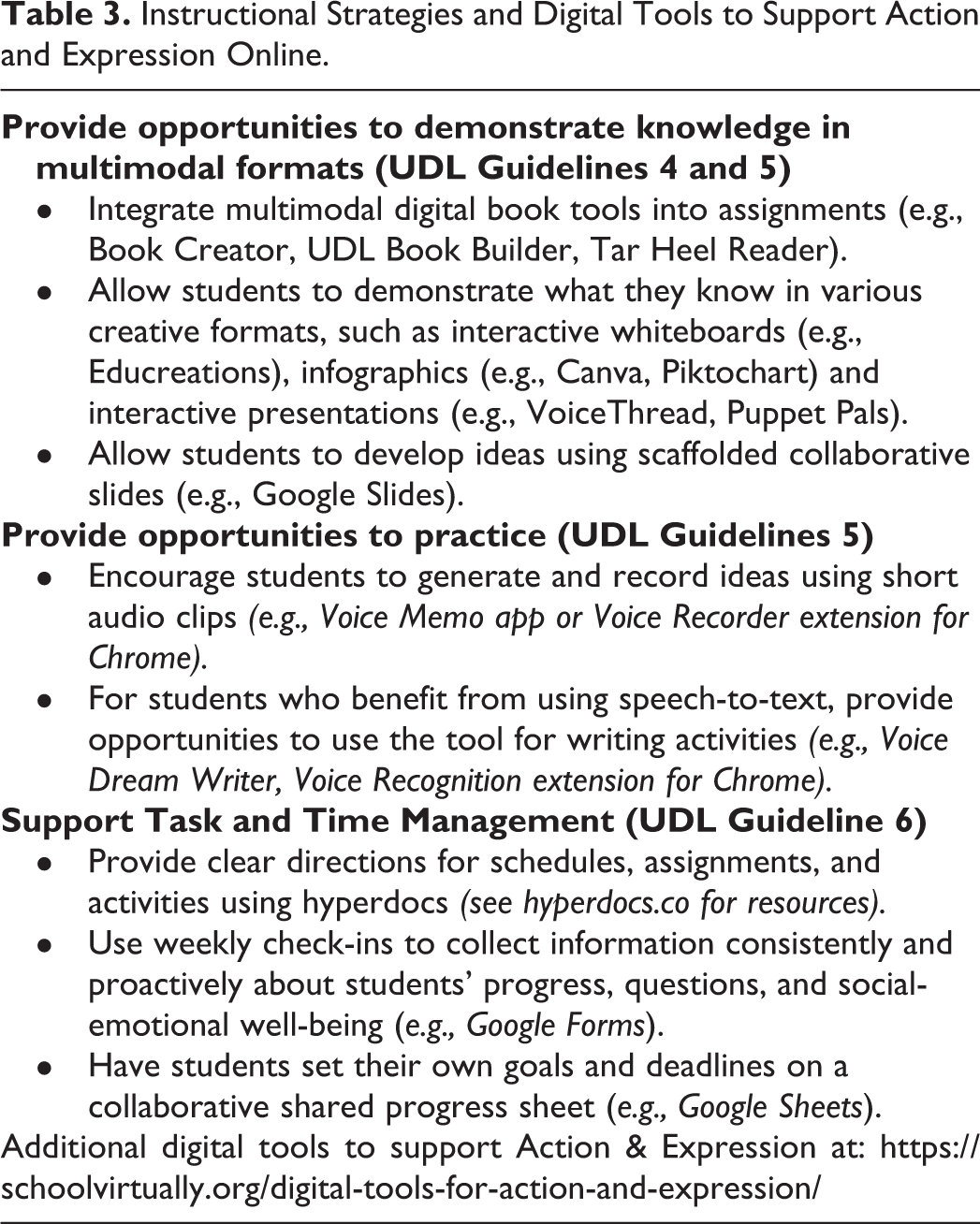
Provide Opportunities to Demonstrate Knowledge in Multimodal Formats (UDL Guidelines 4 and 5)
The online learning environment is a natural fit for using various tools that allow students to demonstrate what they know in multimodal ways, combining text, images, audio, and/or video. Teachers can provide scaffolds, such as creating examples of what a completed project looks like, allowing students to compose their thoughts using formats of their choice (e.g., recording audio and using images with text), and giving students options to build projects incrementally. Teachers can provide “mastery-oriented feedback” as students build their multimodal projects to demonstrate what they know. Mastery-oriented feedback is timely and specific and lets students know how they are doing and how to successfully meet expectations. In the online learning environment, this type of feedback can be essential, letting students know if they are on track. Digital tools can be used to optimize access to assistive technologies (UDL Checkpoint 4.2) and to provide options for construction and composition and support practice (UDL Checkpoint 5.2 and 5.3). Multimodal digital authoring tools allow students to demonstrate what they know using a combination of text, images, audio, and video. Digital tools that can be used for this purpose include Book Creator, UDL Book Builder, and Tar Heel Reader. For older students, infographics can also be an authentic format to summarize information that they have learned and share their knowledge, using tools such as Piktochart and Canva. Other multimodal environments, such as interactive whiteboards and online presentation tools, allow students to demonstrate their understanding of concepts in creative formats. For example, they can narrate concepts on slides and share their presentations with peers. In addition to book authoring tools, some online tools that support multimodal presentation include Puppet Pals, Educreations, and VoiceThread. Collaborative presentation environments, such as Google Slides, can be used to scaffold assignments. Teachers can guide students on the parameters (e.g., setting a number of slides to create) and provide scaffolds as needed (e.g., placing headers on slides to help students organize information). Students can collaborate in groups on slides, and teachers can provide feedback. These projects can become the basis of written reports if appropriate, providing structure for a written assignment (Hitchcock et al., 2016; Rao & Torres, 2017).
Provide Opportunities to Practice (UDL Guidelines 5)
Without the benefit of just-in-time feedback that they receive in a classroom, students may feel uncertain or anxious about how to tackle larger assignments. Students also need opportunities to practice as they develop and express what they know. Teachers can leverage digital tools to provide these opportunities and also give mastery-oriented feedback that feels immediate and reduces uncertainty and anxiety, as they might in person in a classroom. A variety of digital tools can provide opportunities for fluency and practice/performance (UDL Checkpoint 5.3). Give students the option to “think out loud” and record short audio clips to demonstrate or express their understanding. These can be responses to questions/prompts or ideas that students generate as a precursor to a more extensive assignment (e.g., writing a report). There are many audio recording apps for mobile devices (e.g., Voice Memo) and for the computer (e.g., Quicktime) or browser (Voice Recorder extension for Chrome). For students who struggle with writing, speech-to-text (STT) tools can provide a way to record their thoughts without the challenges of drafting text. STT, including the app Voice Dream Writer and Voice Recognition extension for the Chrome browser, allows students to dictate their thoughts, reducing barriers associated with drafting text and writing. Provide students with prompts to respond to as a scaffold for a longer writing assignment. [It is important to note that not all students benefit from STT. For some students, STT can be more frustrating than typing; teachers should allow students to use the tool and reflect on whether they benefit from using STT as a part of their writing process (Ok et al., 2020).]
Support Task and Time Management (UDL Guideline 6)
Without the structure of time that a school day naturally provides, students may experience challenges with how to organize and manage their time, pace themselves, and monitor their progress. Many students with and without disabilities can benefit from supports for these “executive function” tasks of managing and monitoring themselves. In the online learning environment, teachers can guide appropriate goal-setting (UDL Checkpoint 6.1), support planning and strategy development (UDL Checkpoint 6.2), facilitate managing information and resources (UDL Checkpoint 6.3), and enhance capacity for monitoring progress (UDL Checkpoint 6.4) by strategically integrating digital tools. Provide directions for regular tasks (e.g., synchronous meetings, assignments) in a concise format using hyperdocs, a document with multiple hyperlinks that serves as a central point to access essential information in a clear and consistent way. Hyperdocs can provide an “at a glance” view of major events each day with links to key resources that can be helpful for the student and for parents/family members who are assisting a child at home. Hyperdocs.co provides various templates and resources. Touch base with students proactively and consistently using a simple weekly check-in online. Using an online survey tool (e.g., Google Forms) as a weekly check-in, teachers can provide a space for students to share information about what is going well and what challenges they are experiencing. For students who are unlikely to reach out on their own or will only reach out after a problem occurs, this can provide a self-regulation support. For longer-term assignments or open-ended tasks (e.g., problem-based learning), create a shared “progress sheet” in which students set their own deadlines. Using a collaborative document like Google Sheets, note the major milestones of an assignment and ask students to set their own goals of when they will reach those milestones. This gives students a structure to break down a larger task into component parts, set realistic and incremental deadlines for themselves, and engage in the activity by seeing their peers’ goals.
Supporting Engagement Online
Engagement and motivation in the online learning environment pose challenges at several levels. Students are required to initiate and engage in learning tasks on their own, without the structure and direction provided in a classroom. With the boundaries of school and home being blurred in the online learning environment, it can be challenging to demarcate focused time for schoolwork. Distractions at home and lack of motivation or ability to work and focus independently can lead to task avoidance. For some students, the lack of social interaction can be isolating and reduce motivation to engage in schoolwork. To support persistence and motivation, teachers can use strategies that support self-regulation, interaction, and relevance. Table 4 provides an overview of instructional strategies and digital tools to support multiple means of engagement online.
Instructional Strategies and Digital Tools to Support Engagement Online.
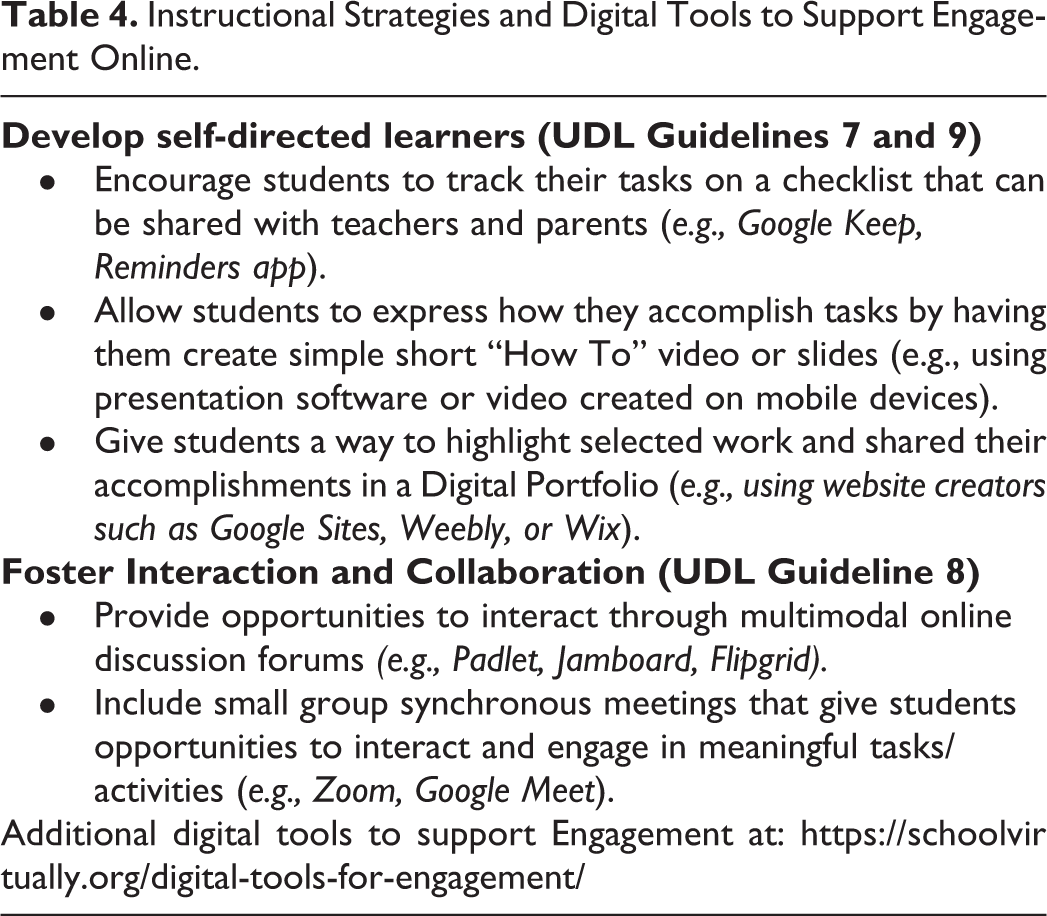
Develop Self-Directed Learners (UDL Guidelines 7 and 9)
Online learning requires a great deal of self-regulation and an ability to be self-directed in learning. For students with disabilities, it is helpful to integrate strategies that promote persistence and build self-confidence. Students have to be aware of time in a larger sense (what to do and when) and also be able to break down tasks to complete them independently. To support students with these skills, teachers can use digital tools to integrate opportunities to increase relevance of activities (UDL Guideline 7.2), foster self-reflection (UDL Guideline 9.3), and encourage self-directed learning and motivation (UDL Guideline 9.1). Encourage students to use online checklist or reminder tools to maintain a task list that can be shared with teachers and parents. These can synchronize across devices and be available on students’ laptops and mobile devices. There are many free mobile apps and tools, such as Google Keep and reminder/to-do list apps, that can be used to create checklists. Students can articulate what they are able to do and what they are good at by making “How To” slide presentations or short videos. A “how to” video depicts the student showing how they do something well (for example, “how to be a good friend,” “how to prepare for online class”). To make it simple for students to plan and execute, a How To project should include no more than 5 or 6 steps. Older students can plan out what they will show independently, while younger students can create a script in collaboration with a teacher or parent. Students can use photos and text if they are doing a slide show (for example, using PowerPoint or Google Slides) or create short video clips that show them in action. Video clips can be embedded in slide presentations or combined into a single video, using tools such as iMovie, Adobe Spark, or WeVideo). Students can create a digital portfolio to showcase their work and progress over time. Digital portfolios can provide an authentic way to self-reflect on progress, highlight accomplishments, and share work. The process of creating a digital portfolio gives students the agency to reflect on their work, articulate what they have accomplished, and share items they are proud of. Students can create digital portfolios using tools such as Google Sites, Weebly, and Wix.
Foster Interaction and Collaboration (UDL Guideline 8)
When designing lessons for the online environment, it is useful to consider how and when to build in meaningful opportunities for interaction, both in asynchronous and synchronous formats. Teachers can make instructional decisions about how to build in these opportunities in ways that support instructional goals and objectives and foster collaboration and community (UDL Guideline 8.3). Have students share their ideas in online discussion forums, where they can post and respond to each other asynchronously. Web-based bulletin boards like Padlet and Jamboard allow students to post comments using multimodal formats (i.e., text, audio/video, hyperlinks, images). Flipgrid allows students to post short videos and respond to peers. These strategies can provide supports for persistence and engagement by giving students ways to see and hear what peers are doing and saying about a topic and to give feedback to each other. If your online learning environment includes synchronous meeting opportunities (e.g., via Zoom or Google Meet), design collaborative activities, linked to the lesson goals, for students to do together online. These should be short, structured activities to ensure that students stay on task and use the time to interact towards a specific goal. Provide clear directions and an outcome for groups. For example, create a prompt on a Google Doc or a collaborative environment, such as Padlet, for groups to record the outcome of a group discussion.
Conclusion
Digital tools will continue to evolve as innovations in educational technology emerge. It is important for teachers to evaluate the features of new and emerging technologies through the lens of UDL, considering how the tools offer multiple means of representation, action and expression, and engagement to support students and help them master learning objectives. The COVID-19 pandemic forced a rapid adoption of digital tools as teachers found themselves shifting lessons into online and blended formats. As we look ahead, the digital tools and strategies addressed in this article, as well as new tools that will invariably emerge over time, should continue to be used to support students in all instructional delivery formats, online, blended, and in-person. Students will benefit when teachers integrate digital tools in purposeful and intentional ways that support their needs, engage them in learning, and help them with mastery of their own learning. For teachers, this will require being able to assess new tools, considering which features can be used in instructional and assistive ways, and designing lessons that integrate digital tools in ways that meaningfully support learning objectives.
Footnotes
Declaration of Conflicting Interests
The author(s) declared no potential conflicts of interest with respect to the research, authorship, and/or publication of this article.
Funding
The author(s) received no financial support for the research, authorship, and/or publication of this article.
