







Abstract
With emphasis placed on the least restrictive learning environments under the Individuals with Disabilities Education Act (IDEA), students with disabilities are often placed in general education classrooms. As a result, the discussion of inclusion strategies has increased in special education. The rise in 1:1 device initiatives offers the inclusionary practice of giving all students within a school access to their own device, with Google’s Chromebook and Apple’s iPad being among the most common device choices. This article explains the potential uses of 1:1 devices for students in inclusion settings, including built-in accessibility features and implementation strategies for educators.
The adoption of 1:1 device initiatives is currently on the rise in school districts (Consortium for School Networking, 2018). According to the 2018–2019 survey conducted by the Consortium for School Networking (2018), of the 386 surveyed districts, 59% of high schools, 63% of middle schools, and 29% of elementary schools are already at the point of having one device per child in their buildings. These percentages are expected to continue to increase over the next few years. These programs allow for each student to receive a tablet, laptop, or another computing device from their school district for use at home, in school, or in both settings. The decreased costs of devices, as well as their increased functionality, have assisted in making 1:1 devices feasible for more schools (Penuel, 2006). While schools have a variety of options when selecting the device to distribute to all students, Google’s Chromebook and Apple’s iPad are frequently chosen.
1:1 devices have the potential to be beneficial for students with disabilities, including increasing instructional engagement, participation, motivation, independent working skills, and organization (Harris & Smith, 2004). Students felt more included among their peers, increasing their confidence in the classroom because of the school-issued device (Corn et al., 2012). In addition, an inclusive experience is provided for students because they are provided with the same device as their peers. Inclusion refers to experiences or settings, where all students are included as part of the school community. Following the guidelines from the Individuals with Disabilities Education Act (IDEA), students are required to be placed in their least restrictive environment. In the United States, approximately 62.5% of all students with disabilities spend 80% or more of their day in a general education class (U.S. Department of Education, National Center for Statistics, 2019). Within the inclusion setting, students continue to receive the modifications and accommodations determined in the Individual Education Plan (IEP).
One portion of the IEP that must be discussed by IEP team members is the need for assistive technology (AT). Under IDEA (2004), an AT device is defined as any equipment or product “that is used to increase, maintain, or improve functional capabilities of a child with a disability.” Regardless of a student’s placement, AT must be considered based on the student’s individual needs. The broadness of the definition of AT allows for a lot of interpretation by the IEP team and, as a result, can often include low-tech items, such as pencil grips, and high-tech items, such as devices. According to Puckett (2005), instructional tools can assume the responsibility of AT, as is the case with tools like online dictionaries. While these products, which can also include software used in the classroom, can be considered useful for general instruction, they can also fall under the classification of AT when used to support the needs of students with disabilities.
Prior to the rise in 1:1 device programs, discussions about AT, specifically high-tech decisions, tended to include more specialized equipment (Nepo, 2017). The adoption of school-issued devices does not eliminate the need for such equipment, as the individual student needs to be taken into consideration. However, there has been more discussion about considering everyday tools as AT options (Bouck et al., 2012). As more improvements are made in personal devices, such as mobile phones, laptops, and tablets, they have the potential to replace some of the older, high-tech AT. Many devices are adopting a Universal Design approach when redesigning or updating everyday technologies (Pier et al., 2011). Due to this shift, the needs of all users of a product are noted when designing products, allowing for these devices to be more inclusive.
The Student, Environment, Tasks, and Tools (SETT) Framework
The SETT framework focuses on how families, individuals with disabilities, and other members of the IEP team can discuss and make decisions regarding AT (Zabala, 1995). SETT includes an analysis of the student, environment, tasks, and tools. Within the framework, members of the IEP team are responsible for understanding and discussing the student as an individual, including their strengths, achievements, interests, and needs (Zabala, 1995). The team also evaluates the environment in which the student is currently placed such as the classroom(s) arrangements and instructional pedagogy used in the classroom. When considering tasks, the team must determine the types of activities conducted in the environment, possibilities for modification of daily activities, and address the connection to the goals the student is working toward in their IEP (Zabala, 1995). Within each of these circumstances, the team needs to determine how technology could be used to assist the student in the classroom while simultaneously building on the skills and strengths they already possess.
This framework can be beneficial when determining if a 1:1 device is suitable for an individual student. After discussing the student, the nature of their placement, and their goals and expected tasks, the team can note the accessibility features of the 1:1 device to see whether any of the tools are appropriate for the student and their needs. In some cases, this discussion may lead to the determination that a more specialized piece of high-tech AT may be necessary. However, if some of the preexisting tools built into a Chromebook or iPad can help students to accomplish their goals, they should be recommended during the AT evaluation process. Since many devices offer possibilities for customization or adding additional tools and software to continue to support specific student needs, these situations also need to be determined. If the IEP team is prepared with observations and data to share during the discussion using the SETT framework, many potential obstacles with using AT can be overcome (Zabala, 1995).
ReSETTing involves 12 steps that support how the student’s progress will be monitored while using AT (Zabala et al., 2005). The IEP team must discuss the intended changes that will occur in the student’s performance when provided with AT. The framework involves the notion that members of the team will continue to meet, discuss updates, and revisit the SETT evaluation information in order to determine whether the 1:1 device is still the most appropriate AT for the student or if adjustments must be made.
Accessibility Features, Modifications, and Accommodations
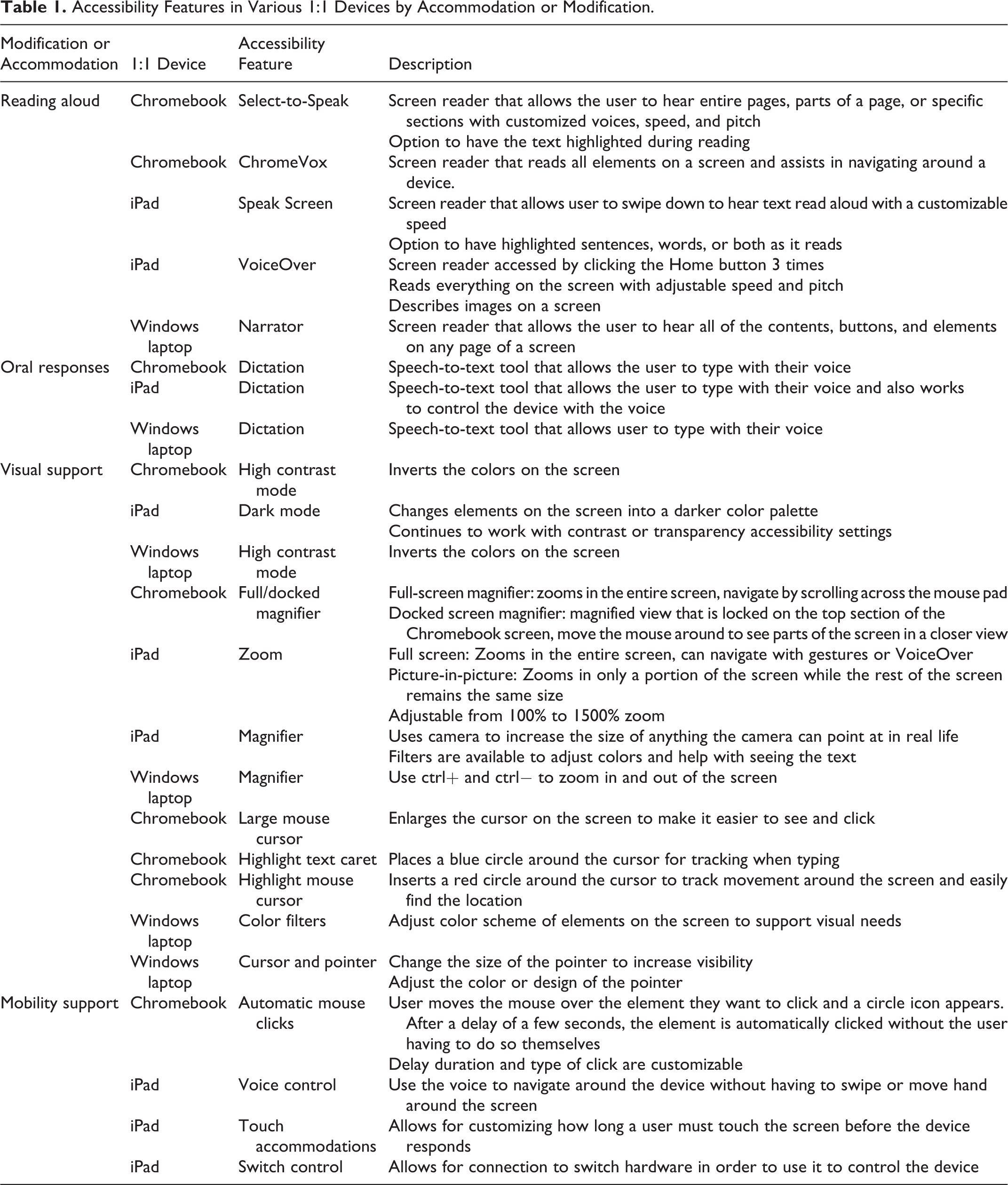
School districts have a variety of options when considering which 1:1 device to provide to students. Regardless of their decision, the device they choose will likely already come equipped with accessibility features. Instead of having people download third-party apps or supports based on their individual needs, many devices, including the Chromebook and iPad, have a handful of accessibility features downloaded onto every device. Table 1 offers a breakdown of the accessibility features offered by the Chromebook, iPad, and other common 1:1 devices. This section will detail several accessibility features from these devices, including how they can support modifications and accommodations for students.
Accessibility Features in Various 1:1 Devices by Accommodation or Modification.
Activating Accessibility Features on a Chromebook
The bottom right corner of the Chromebook screen displays the time of day. Select the time and a pop-up menu will appear. Users can also use the keys Alt + Shift + s to open the menu;
Select the accessibility icon;
Choose the Settings gear from the top right corner of the menu;
Click on the different accessibility features to activate on the device;
Note the feature icons available for selection immediately on the taskbar.
Activating Accessibility Features on an iPad
When on the Home screen, select the Settings icon;
Select the accessibility icon;
Choose the different accessibility features to enable them on the device.
Reading Aloud
Text-to-speech (TTS) or other reading aloud options are often cited as accommodations. For students with specific learning disabilities, including dyslexia, this support assists in increasing focus when reading and guides students in building their reading fluency (Dawson et al., 2018). Many devices, including mobile phones, offer the opportunity to have the information on the screen read aloud.
For the Chromebook, the TTS tool is called Select-to-Speak. Once activated, students can listen to any text, selecting single sentences, paragraphs, or an entire text at one time. Students can customize the functionality of the tool based on their individual preferences such as adjusting the pitch, speed, and volume, as well as the voice itself. Students can also enable the text highlight option, where words are highlighted in a color of their choice as Select-and-Speak reads the words. When students are ready to read text aloud, they can select the TTS icon from the taskbar. Then, they must click and drag their mouse across the text they want to read, drawing a box around the paragraphs. Once the mouse is released, Select-and-Speak will begin to read the text. It can be stopped at any time by selecting the icon from the taskbar again.
The TTS alternative for the iPad is in the “Speech” section of the accessibility features. When “Speak Screen” is enabled, the student can swipe down to have the text on their screen read aloud. After swiping down, students can adjust the speed of the reading. The highlighting content option offers the opportunity for single words, full sentences, or both words and sentences to be highlighted as the device reads the text aloud. The highlighting option can also be customized, offering the chance to change the word, sentence, or background color or to switch to underlined text. iPads also offer the Speak Words accessibility feature, which enables the device to speak each word after it is typed. It is located under the Typing Feedback section under accessibility features.
Case study example
Maria is a student with a specific learning disability and is placed in the inclusion setting for social studies. She has a set of co-teachers that work harmoniously to teach the class. In her IEP, Maria has the accommodations of having texts read aloud since it is helpful for her reading comprehension and supports her decoding. For a recent assignment, Maria and her peers can research a current event issue that is meaningful to them. While searching online, Maria finds an article that seems to be about her favorite topic. However, the text is long and contains complex vocabulary. She considers having one of her teachers read the text out loud to her. Then, she remembers she can use her 1:1 device from her school to help her through this issue. Maria plugs in her headphones and activates the TTS accessibility feature. She slows the reading rate down to increase her understanding and can comprehend more of the text, helping her to discover more about her topic.
Oral Responses
Speech-to-text allows students the opportunity to use their voice to control their device or type. This accommodation can support students in improving their writing (Cullen et al., 2008). Specifically, it can assist students in verbalizing their thoughts, including increasing the number of words written per minute (McCollum et al., 2014). For students classified with hearing impairments, speech-to-text tools serve as a way to accurately record teacher lectures to assist in their comprehension of the content (Wald, 2008; Wald & Bain, 2008). This strategy could also be considered for other students placed in a lecture-based education setting.
On the Chromebook, students can utilize the dictation accessibility feature. Students place their cursor where they would like to begin the typing and select the microphone icon in their taskbar. Then, the student begins talking as the device’s microphone picks up their words and transcribes them into the designated spot. Students are responsible for punctuating their work by either dictating their punctuation marks or revising and adding them by hand once they finish speaking. Students can use the on-screen keyboard for additional writing opportunities. The keyboard offers word prediction, as well as voice typing capabilities and a handwriting recognition feature for touch screen devices.
The iPad also offers a dictation feature. When activated, the student can use their voice to type wherever they would be able to type. Similar to other speech-to-text tools, punctuation must be spoken aloud or physically added later. Dictation is accessible in any app or software on the iPad that allows for the option to type. When editing, students can use a series of commands to fully control the way they fix a text. The iPad also offers predictive text within the on-screen keyboard to provide more writing support, where students can type a few letters and have the device to predict a few logical word choices that could come next in their writing.
Case study example
Paul is in a middle school in-class support class for language arts. As part of his IEP, he can communicate his answers to open-ended questions orally, instead of only having to handwrite or type his answers. Paul feels uncomfortable having to go into the hallway to speak his answers out loud to his teacher nor does he like having to sit near her desk to share his responses. Paul’s school just adopted a 1:1 device program, where he was given a new Chromebook at the start of the year. When the class is allowed to move around the room to work on their assignment, Paul is able to move himself to a quiet corner and use the speech-to-text feature to transcribe his response. He can speak fluently into the computer and watch it track his words. When he is finished, he uses TTS to listen back to the text for accuracy before submitting it to his teacher.
Mobility Supports
Both the Chromebook and iPad offer mobility support for students who need assistance with motor skills. The Chromebook offers automatic mouse clicks, where students can drag their cursor over the element they would like to select and, within a customized number of seconds, the computer automatically clicks on that element. A ring surrounds the cursor, signaling the countdown will begin until the element is clicked. Students have the capacity to change the pause time before clicking. They can also switch between types of clicks, including left and right click, which simulates the directional keys on a mouse, double click, click and drag, and scroll. While the touch screen capabilities of an iPad are beneficial, it also offers voice control, which allows users to control everything on their device using only their voice. The device also has switch control capacity that can assist with mobility.
Case study example
Luis is currently placed in an inclusion classroom at the elementary level. His school has adopted an online reading program, and he uses his classroom 1:1 devices to work on personalized skills through the program. Luis has experienced difficulty using the touch pad on his Chromebook. Before switching to a touch screen device, Luis started using automatic clicks, so the computer could select the items he wanted to click. This feature helped to make him feel more comfortable when working on the reading program.
Visual Supports
The white background of a screen can often be difficult for students who may be sensitive to the brightness. High contrast mode allows for the Chromebook screen to be inverted, making the white background turn black and changing many of the colors. For students with visual impairments, returning from concussions, or struggling with the sensation of the bright screen, this mode is an ideal setting for their device. Since most of the Google apps do not allow users to change to dark mode, especially Google Classroom, high contrast mode will simulate the darkness to support students’ vision needs. The iPad offers dark mode, which alters the elements on the screen to make the contents easier to read. Students can also use the contrast and transparency accessibility settings. The transparency tool allows students to adjust the degree to which they can see the background through different elements on their screen. Increasing the transparency could potentially make the text more legible for reading.
Case study example
Tracy has been diagnosed with a visual impairment and needs support with the brightness and size of the tools on her screen. She is currently in a fifth-grade inclusion history class that frequently uses 1:1 devices to complete differentiated assignments and activities. While she is working, Tracy places her screen into contrast mode to help her read and interpret the text features in her assignments. She also enlarged her mouse to help provide some assistance when manipulating elements on the screen.
Implementation Tips
The following are guidelines to consider when bringing accessibility features into inclusion settings in order to appropriately support a student’s individual needs while simultaneously letting them feel successful and comfortable in the classroom. Educators should always consult the IEP when beginning to implement accessibility features through a 1:1 device in an inclusion setting. Since IEPs offer perspectives on the child’s needs and their learning objectives, teachers in an inclusion setting should use this formalized document to make decisions about which accessibility features students need to be using in the classroom. In connection to the SETT framework, educators should test and document student progress with any new accessibility tool. For example, if a child begins to need TTS support, the teacher in the inclusion setting should observe and document progress to see whether the integration of the tool is effective in providing support for the child. If it is, the feature should be discussed at an IEP meeting and added to the formalized document. Teachers must be aware of a wide array of accessibility features and tools supported by a district-selected 1:1 device. Teachers should also frequently observe the students in their classroom, documenting any new concerns or areas where the child may need support. Knowledge of a variety of tools is helpful in working with the student to determine a tool that will be ideal for their specific needs. Adding accessibility features to a student’s toolbox of strategies should be a team effort, with the student being at the forefront of the decision-making. Teachers should meet periodically with their students with disabilities to discuss the accessibility features being integrated into their day. Students can share their opinions or concerns. Students have to feel that their teacher places trust in their decisions regarding their supportive tools, which can lead to increased independence (Courduff et al., 2016). While teacher familiarity with tools is important, the decision regarding an accessibility tool is ultimately the decision of the student, especially in an inclusion setting. In addition to providing accessibility features for students, teachers should consider how to use the 1:1 device to provide supplemental resources for students. Following in the Universal Design for Learning framework, teachers can give students multiple means of accessing the information or demonstrating what they have learned using their device as a learning tool. AT can often be stigmatizing and cause students to feel singled out from their peers (Nepo, 2017). Instead of selecting specific students with accommodations in their IEP to use the accessibility tools, open it up to the entire class and allow everyone to use the tools. Features such as TTS or voice typing can be beneficial for a variety of learners, not just individuals with disabilities and every student will already have the tools added to their 1:1 device. By opening accessibility features to all learners, it allows students with disabilities to feel connected to their peers and feel more comfortable using the supportive tools in the classroom. The fact that every child can use the accessibility features, as well, also offers a level of discretion (Koch, 2017). Accommodations and modifications become more private since everyone is taking advantage of the tools. If it is the first time students are using these tools, provide adequate time for preparation and testing. Students need time to become comfortable using the tools before they can be expected to integrate them into their work independently. Families are an important part of the IEP team. As a result, families should be involved in discussions regarding AT or accessibility features that a student is using in the inclusion setting. The school needs to collaborate with families at home to understand the family’s perceptions of the technology, address any questions or concerns, and provide training or additional information about the tool when appropriate. The family’s acceptance of a technology tool increases the chance that a student will continue to use it rather than abandon it (Phillips & Zhao, 1993).
Conclusion
Inclusion rates are continuing to grow in the United States. Technology is one way to support students placed in these settings. Through 1:1 device initiatives, all students in a school are given the same device to use, equipped with a variety of built-in accessibility features. The fact that all children are given the same support tools allows for accessibility to become normalized in the general education setting, thus increasing the likelihood that a student with a disability will find both comfort and success in the inclusion setting. Since many schools are selecting everyday use devices, such as the Chromebook or iPad, as their 1:1 device, the frequent update and redesign of these devices can be a supportive consideration for students when discussing AT in the inclusion setting.
Footnotes
Declaration of Conflicting Interests
The author(s) declared no potential conflicts of interest with respect to the research, authorship, and/or publication of this article.
Funding
The author(s) received no financial support for the research, authorship, and/or publication of this article.
